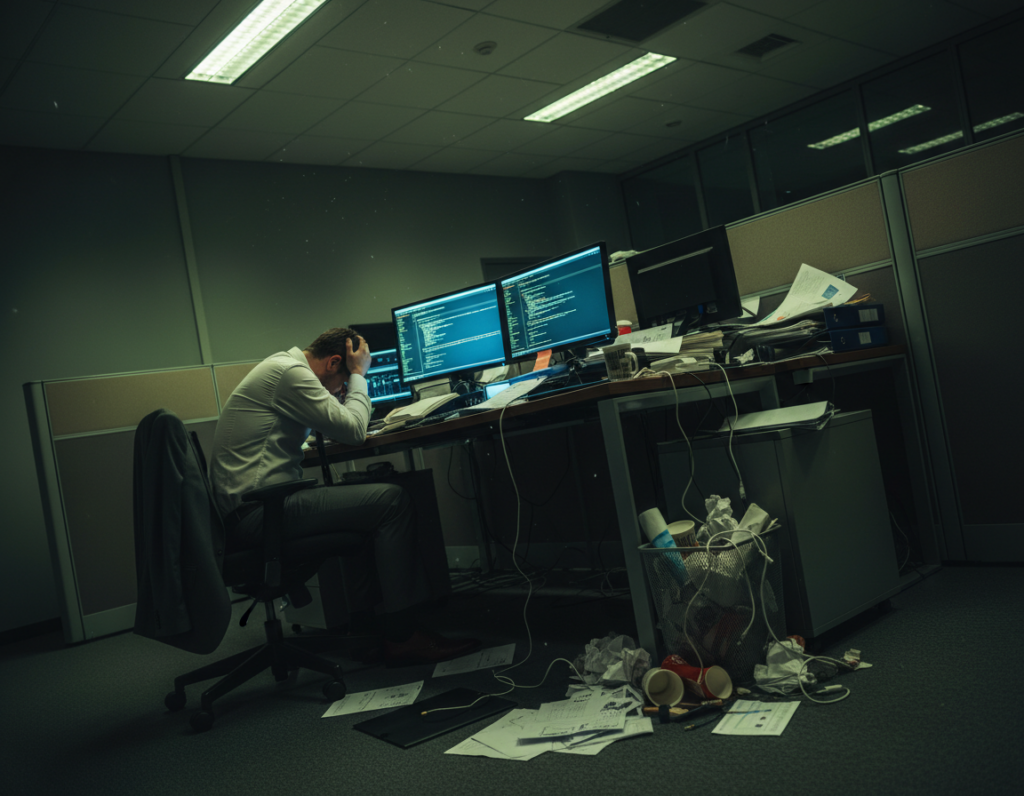
Many people who work from home now spend hours on digital screens each day. Recent data shows four in five American adults use screens for two hours or more daily. This heavy use raises the risk of fatigue and other vision problems.
The most common symptoms include headaches, blurred sight, dry eyes, and neck tension. These signs often mean the visual system is struggling with long periods of focus.
Addressing problems early protects long-term health and keeps productivity steady. Simple, evidence-based steps can make a noticeable difference to comfort and function while they work.
This guide will explain practical changes to a home workstation, suggestions for managing screen time, and tips to improve lighting and posture. For a concise checklist on setup, see this workstation setup guide.
Understanding Digital Eye Strain
Long sessions in front of a display often cause a cluster of uncomfortable visual and physical signs. This condition is commonly called computer vision syndrome and covers a range of complaints from mild irritation to persistent discomfort.
Symptoms of Computer Vision Syndrome
- Dryness and gritty feelings in the eyes, often from reduced blink rate.
- Blurred or fluctuating vision and trouble refocusing after long work periods.
- Headaches, neck tightness, and general visual fatigue that follow extended screen use.
Why Screens Cause Fatigue
Screens demand constant refocusing as pixels form text and images. The visual system works harder to interpret contrast and small details, which leads to rapid tiredness.
The American Academy of Ophthalmology notes that people blink far less while using displays, so dryness and related problems increase. Many who work long hours at a computer report symptoms that indicate these conditions are common and treatable with practical changes.
Optimizing Your Home Office Environment
Lighting and airflow in a home office shape how comfortable a person feels during long work sessions. Areas that exceed 1,000 lux can cause notable visual fatigue, so aim for balanced room brightness that matches the screen.
Position the screen to avoid glare from windows or overhead fixtures. Glare forces the eyes to work harder and can worsen common symptoms. Angle blinds or use matte filters when direct light is unavoidable.
Control air flow by ensuring vents do not blow directly on the face. A humidifier can help keep moisture in the air to prevent dryness that leads to discomfort.
- Match room lighting to screen brightness for a balanced view.
- Avoid bright spots and deep shadows in the work area.
- Check for light levels and adjust to comfortable conditions.
Simple changes to lighting and air quality protect long-term health and comfort. For setup tips that include posture and equipment, see these ergonomic workspace tips.
Ergonomic Adjustments for Better Comfort
Ergonomic tweaks to your desk setup help the body stay aligned during extended hours of digital work. Small changes to posture and monitor placement can prevent tension and improve focus.
Correct Posture and Screen Distance
Keep the screen between 25 and 35 inches from the face. The center of the display should sit about 10 degrees below eye level to avoid extra neck effort.
- Place the monitor at the recommended distance to limit visual strain and improve comfort.
- Set the screen center slightly below straight-ahead sight to ease the neck and maintain good posture.
- Keep feet flat on the floor; if they do not reach, use a footrest to support proper posture and body alignment.
- Elevation for laptops helps prevent hunching and lowers the risk of lasting vision and neck problems.
These adjustments are simple but effective. By keeping the screen at the right distance and height, users can work more comfortably and protect vision while using a computer.
Proven Methods to Reduce Eye Strain Computer Users Face
Simple rituals during the workday help keep vision comfortable and focus steady. These steps target common symptoms of computer vision syndrome and support long-term visual health.
The Twenty Twenty Twenty Rule
The 20-20-20 rule asks users to look at something 20 feet away for 20 seconds every 20 minutes. This brief pause eases focus effort and refreshes the visual system.
Taking Effective Blink Breaks
People blink far less when they use screens, which leads to dryer eyes and more discomfort. Consciously blink several times during short pauses to keep moisture on the surface.
Using Artificial Tears
Over-the-counter eye drops or preservative-free artificial tears can relieve persistent dryness. Use them as directed when symptoms persist, and consult a clinician for frequent problems.
- Set a timer to cue the 20-20-20 breaks and a longer 15-minute break every two hours of work.
- Practice blink breaks during busy tasks to maintain tear film and comfort.
- Consider eye drops for short-term relief of dryness after long hours at a screen.
Managing Screen Settings and Display Quality
Proper screen setup helps the visual system work with the display, not against it. Small changes to brightness, contrast, and font size make long sessions more comfortable.
Match brightness to the room lighting so the display sits at a similar level to ambient light. Many devices have auto-brightness that adjusts the screen based on the room.
- Set contrast between 60% and 70% so text stands out for easier reading.
- Increase font size to 12 or higher to lower the effort the eyes need to process information.
- Choose a monitor with a refresh rate of at least 70 hertz to limit flicker and visual fatigue.
- Use a non-glare screen or apply an anti- glare film to cut reflections and improve comfort.
- Balance brightness, contrast, and lighting to prevent common symptoms of computer vision issues.
“Optimizing display settings is a critical step in managing digital eye health.”
Lifestyle Habits and Vision Care
Simple lifestyle shifts can have a big impact on visual comfort during work. Good sleep, regular exercise, and balanced hydration support overall vision health. These habits help the visual system recover after long sessions at a screen.
When to Consult an Eye Doctor
People who wear contact lenses often report more discomfort because lenses can change tear film stability. If dryness or other symptoms persist, switching to glasses during long screen sessions can help.
It is important to check a prescription at least once a year. An eye doctor will test for refractive problems and advise on the best glasses or contact options.
- Ask about anti-reflective coatings and lens treatments for regular screen use.
- Report persistent symptoms such as blurred vision, ongoing dryness, or headaches to a clinician.
- Keep a steady exam schedule if you work in an office or use a computer daily.
Conclusion
Combining smart workstation tweaks with brief, regular breaks keeps the visual system working smoothly.
Follow ergonomic setup, match lighting to the display, and use the 20-20-20 habit to manage digital eye strain and related symptoms. Maintain good posture and the recommended screen distance to avoid neck and visual problems during long work time.
Regular checkups matter. A clinician can spot early signs of computer vision syndrome or a vision syndrome that needs treatment. These steps together help protect long-term vision and sustain daily productivity.