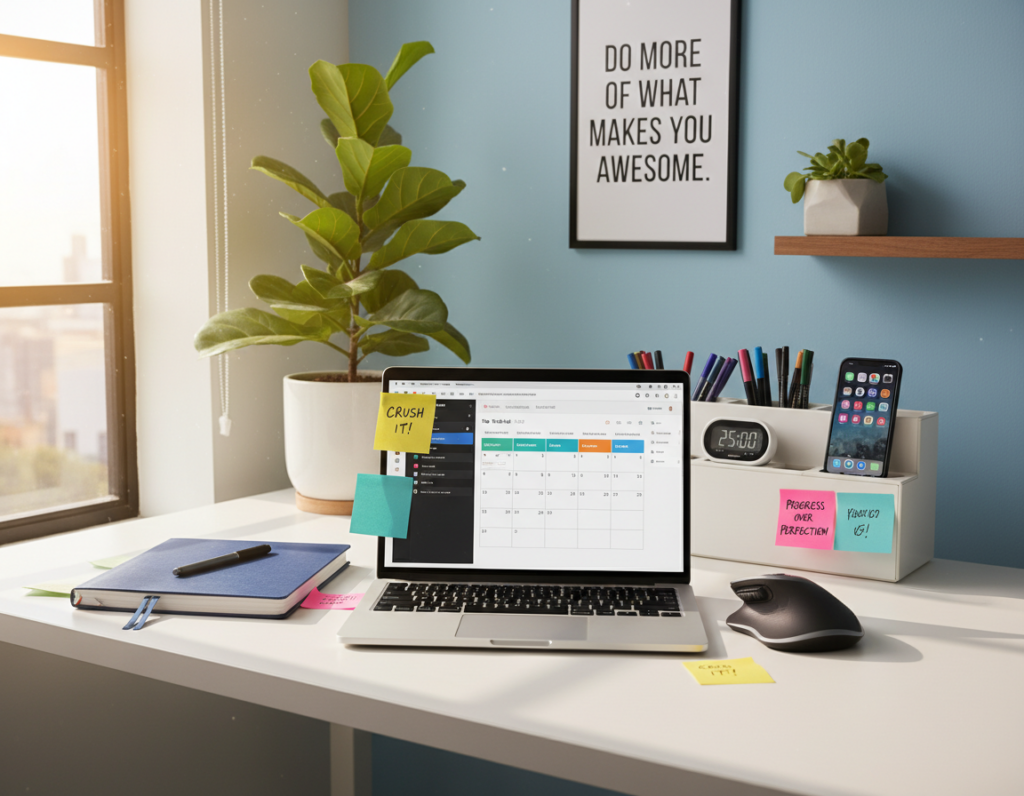
Remote professionals need tools that reduce strain and boost focus. A well-designed mouse can cut fatigue and speed up daily tasks.
Ergonomic shapes fit different hand sizes and grip styles. This lowers the risk of repetitive stress injuries while improving posture at a home office desk.
Feature sets differ by model: adjustable sensitivity, extra buttons, and long battery life matter when tasks demand precision.
Performance and comfort together define value for people who spend long hours on a computer. This guide highlights top choices with attention to durability and cost.
Key takeaways: Ergonomics and customizable features matter most.
Choose a model that matches hand size and daily tasks to stay productive and healthy.
Understanding the Importance of a Quality Wireless Mouse
Small hardware choices have big effects; a well-made pointer reduces strain and keeps people productive.
Productivity mice focus on comfort and convenience rather than ultra-low latency. That matters for remote professionals who spend hours handling emails, spreadsheets, and creative apps.
An ergonomic mouse helps stave off repetitive stress injuries. It supports a natural hand position and eases pressure on the wrist during long sessions.
Comfort and function together make a device more than a simple accessory. Choosing the right mice for a desk setup supports posture and reduces fatigue.
“Investing in a reliable peripheral is a proactive step toward long-term health and sustained productivity.”
- A quality mouse enhances efficiency and physical well-being.
- Professional mice often cradle the hand to cut strain over an eight-hour day.
- Modern designs improve support compared to flat-profile office peripherals.
Bottom line: A thoughtful wireless peripheral is an investment in daily comfort and long-term health for remote workers across the United States.
How to Choose the Best Wireless Mouse for Work
Choosing the right pointer can change comfort and accuracy during long desk sessions. A clear selection process helps users match shape and features to daily tasks.
Sensor Accuracy
Precision matters. High-quality sensors prevent skipping and drifting so a click lands where intended.
People who edit documents or move between windows need steady movement and low latency to keep momentum.
Battery Life
Long battery life or USB‑C charging reduces interruptions. Consider models that last days or offer quick top-ups.
Connectivity Options
Look for Bluetooth and 2.4GHz adapters to switch between computers and tablets with ease. Reliable connections cut lag and improve overall performance.
- Place the scroll wheel and programmable buttons where your hand and grip feel natural.
- Check software support to customize clicks and scrolling behavior.
- Balance design, price, and features to pick a model that suits hours at the desk.
Top Pick for Overall Performance
Top-tier pointing gear changes routine workflows and keeps focus steady.
The Logitech MX Master 3S earns its place as the go-to model for professionals who need high precision and flexible options. It packs an 8,000 DPI sensor and an electromagnetic scroll wheel that switches between smooth and ratchet scrolling.
Productivity features include Logi Flow, which lets users move files and switch control across three devices. The side thumb wheel and six configurable buttons speed common tasks with app-specific profiles.
- Comfort: A sculpted shape gives the hand a secure rest during long hours at the desk.
- Noise and clicks: Quiet click switches suit shared spaces and quiet home setups.
- Control: Low latency movement and rich software options tailor performance to each user.
“The MX Master 3S blends refined scrolling, customizable buttons, and ergonomic design into a single, reliable model.”
For people who spend many hours using a pointing device, this version balances precision, battery life, and software-backed customization. It remains a top pick in reviews and practical use across home and office gear lists.
Best Ergonomic Options for Daily Comfort
A small change in shape can make long sessions far more comfortable for many people. Choosing an option that suits hand size reduces strain and keeps movement precise during extended desk hours.
The Logitech Lift targets small- to medium-sized hands with a 57-degree vertical angle that encourages a natural handshake position. This vertical design places the hand to cut forearm rotation and ease wrist pressure.
Fit and Features
Support matters. A dedicated thumb rest keeps the side of the hand supported during lengthy use. Customizable buttons and software profiles help users speed common tasks and reduce repetitive clicking.
- Neutral wrist position: The Lift’s shape reduces muscle strain across hours at the desk.
- Compact vertical design: Made specifically for people with smaller hands, offering a comfortable alternative to larger devices.
- Productivity features: Per-app profiles and Logitech Flow let users switch between devices and keep workflow smooth.
“A well-fitting ergonomic mouse reduces fatigue and maintains steady performance over long sessions.”
Vertical Mice for Wrist Health
Vertical designs shift the hand into a more natural pose, easing pressure on the wrist during long sessions.
Why the shape matters: By placing the hand in a handshake position, vertical mice reduce forearm rotation and lower carpal tunnel stress. That change helps people who face long periods of clicking and scrolling.
The Lenovo Go Wireless Vertical Mouse is an accessible option at about $30–$50. It pairs a cork side finish with three DPI steps (800–2,400) so users can tune sensitivity to their tasks.
Customization counts. Six programmable buttons let users map shortcuts with companion software and keep common actions within thumb reach. Some users need time to adapt to side button placement, but the ergonomic gains usually justify the switch.
- Comfort: Vertical shape eases wrist pressure during extended use.
- Performance: Adjustable DPI and low latency keep pointer movement predictable.
- Options: Affordable price and refined design make this an attractive choice for many users.
“Shifting to a vertical design can reduce strain and sustain productivity over long days.”
Premium Productivity Features
High-end peripherals blend precise tracking with programmable controls to cut redundant clicks. Professionals who juggle long spreadsheets and tight deadlines value features that speed navigation and reduce strain.
Programmable buttons let users map complex macros to side keys and the thumb area. This turns multi-step actions into a single click and speeds common tasks across apps.
Programmable Buttons
The Razer Pro Click Mini exemplifies this approach. It pairs a 12,000 DPI optical sensor and a 1,000 Hz polling rate with several assignable buttons. With companion software, users can set per-app profiles and switch options in seconds.
Infinite Scrolling
Infinite scroll transforms long navigation. A 4-way tilt wheel supports both free-spin and ratcheted modes, so a single flick moves through pages while precise wheel steps remain available for editing.
- High precision: Top sensors track accurately on many surfaces.
- Workflow gains: Programmable button layouts cut repetitive clicks.
- Flexible scroll: Infinite and ratcheted wheel choices suit varied tasks.
Reliable Budget Choices
For cost-conscious setups, dependable entry-level gear keeps daily tasks moving with minimal fuss.
The Logitech M510 is a clear example. It pairs an ambidextrous design with reliable 2.4GHz connectivity and seven programmable buttons. Users get button remapping and basic software support without a steep price.
Long battery life is a standout. The M510 can run up to 24 months on common batteries, so replacements and downtime are rare.
- Budget-friendly mice offer core productivity features at a low price.
- The ambidextrous design suits many grip styles and keeps the thumb and side area comfortable.
- Even simple models often include per-app profiles and gesture options in companion software.
Choose a dependable model to build a functional home office without overspending. For more comparative picks, see this recommended list.
Compact Mice for Minimalist Setups
Compact input devices shrink the footprint of a setup without cutting essential controls.
The Microsoft Modern Mobile Mouse weighs just 78g. Its ultra-thin, rectangular design has two buttons and a centered scroll wheel, making it easy to pack and use on the go.
Grip Style Limitations
Small shapes favor portability but can limit certain grips. The palm grip may feel cramped, while fingertip and claw grips often adapt better.
Design trade-offs: compact mice keep essential buttons and a reliable scroll wheel, yet sacrifice large thumb rests and extra side buttons.
- Ideal when desk space is tight and travel is common.
- Sleek profile fits easily into laptop bags and tech pouches.
- Lightweight build reduces fatigue during travel and packing.
- Essential controls—left/right button and wheel—cover basic browsing and document tasks.
Tip: Users who switch between devices should test grip comfort before committing to a small model.
Travel-sized Solutions for Remote Professionals
When the office moves, the pointing device must balance ergonomics and portability. Travel-sized mice aim to do just that by pairing a slim profile with a supportive shape.
Microsoft Arc Mouse is a standout. It snaps into a curved, ergonomic mouse that fits the hand during use and flattens for easy packing. The snap-to-shape design makes it simple to stow in a laptop sleeve.
Most travel mice use Bluetooth, so professionals avoid extra dongles and free up laptop ports. These compact options may trade extra buttons and battery capacity for portability, yet they keep essential scroll and click controls.
- Packability: Curved to use, flat to carry.
- Connectivity: Bluetooth links quickly to laptops and tablets.
- Function: Core scroll wheel and reliable click actions remain responsive on the road.
Choosing the right travel mouse ensures steady productivity without sacrificing comfort or essential features.
Trackball Mice for Precision and Stability
Trackball designs move the cursor without shifting the device, which changes how users think about desk ergonomics.
Trackball mice let the device stay still while the thumb or fingers spin a ball to navigate the screen. The Logitech Ergo M575 is a well-known example that uses a thumb-driven trackball to eliminate wrist movement.
Learning Curve
There is a short adjustment period when switching input methods. Many users report it becomes natural within a few days of regular use.
Patience pays off: accuracy improves quickly and habitual arm motions fade as the thumb takes over cursor control.
Desk Space Efficiency
Because the device stays stationary, trackball mice save surface area and stay stable on cramped desks.
- Precision: High cursor control without sliding a device across a pad.
- Reduced wrist motion: Navigate the entire screen using only the thumb on models with a thumb rest.
- Customizable buttons: Many models include side buttons and companion software to map shortcuts.
“A trackball can be a compact, stable alternative that preserves precision while freeing desk space.”
Multi-device Connectivity for Seamless Workflow
Seamless device switching keeps momentum when tasks hop between screens.
Multi-device connectivity matters when someone uses a laptop, desktop, and tablet in the same day. The Logitech Triathlon M720 shows how a dedicated profile switch makes that simple. With a single, easy-to-reach button, it swaps connections among three systems instantly.
That instant swap saves time and cuts desk clutter. Instead of re-pairing or juggling dongles, the user presses one control and continues typing, dragging, or presenting on the next device.
- Multi-device support keeps workflows uninterrupted across screens.
- The Triathlon M720 handles multiple links and uses a profile switch button to jump between machines.
- Integration like this echoes the design goals of the Logitech Master line: cohesive, efficient setups that reduce friction.
Investing in on-device switching is a practical choice for anyone managing several systems. It streamlines tasks, keeps the hand steady on the wheel and scroll controls, and reduces context switching during a busy day.
Our Rigorous Testing Methodology
Objective measurement separates marketing claims from actual on-desk performance. The team evaluates each product in a lab and in everyday settings to capture both data and feel.
Reviewers test multiple surface types and record tracking stability. They also measure click force and timing to spot speed-related accuracy changes.
Ergonomics are checked by real people. Testers with different hand sizes verify that designs such as the Logitech Master series deliver the intended support during long use.
Battery life is measured against manufacturer claims and under typical daily routines. That gives a realistic expectation of longevity rather than a lab-only figure.
- Lab and real-world tests: ensure recommendations reflect true performance.
- Hand-size sampling: confirms ergonomic claims across users.
- Surface and sensor checks: validate tracking on common desk materials.
“When readers choose hardware vetted by experts, they gain confidence in durability and overall build quality.”
Conclusion
A thoughtful peripheral choice reduces interruptions and supports healthy posture. Selecting the right device can transform daily comfort and sharpen focus during long hours at a desk.
Consider hand size, grip style, and main tasks when narrowing options. Prioritize features such as ergonomic support, multi-device connectivity, or portability based on daily needs.
Investing in a quality mouse pays dividends in long-term health and steady productivity. With the right match, users in the United States can enjoy fewer aches and a smoother workflow for years to come.